Free beta · Windows and macOS
Your AI agents, at their desks.
Crew shows Claude Code, Codex and Gemini CLI as characters in a cozy 3D office. Glance over to see who is working, who is stuck and who needs a yes, without switching windows.
Version 0.1.0 beta. Free, no account. It needs Claude Code, Codex CLI or Gemini CLI installed and signed in.

- Thinking
- Working
- Needs you
- Done
Why Crew
-
See everything at once
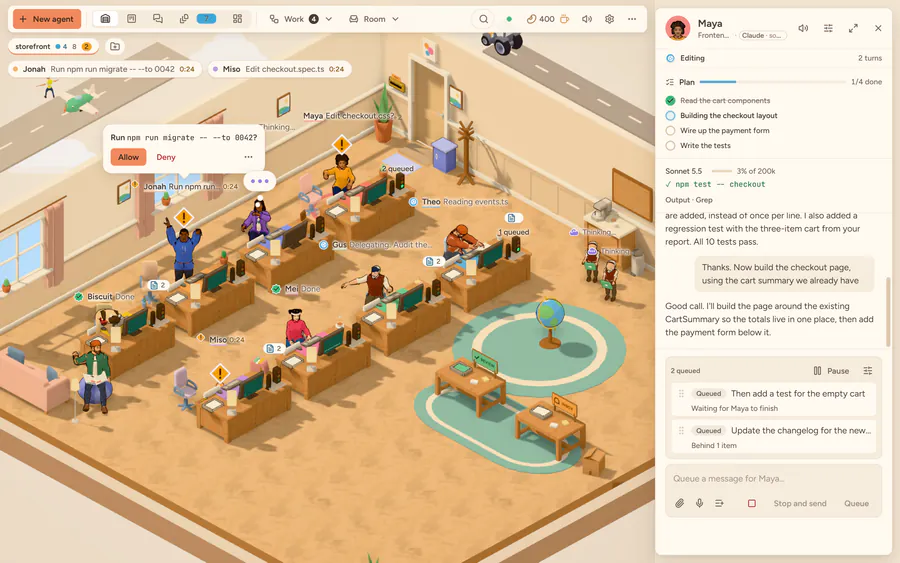
Every agent is a character at a desk. Thinking, reading, editing, running tests, waiting for you, done: you can tell from across the room.
-
Say yes where it happens
When Claude Code wants to edit a file or run a command, a card appears on its character with the exact command. Allow once, deny, or always allow the safe ones.
-
Stays on your computer
No account, no telemetry, no cloud. Crew is a window around the tools you already run, and it makes no AI calls of its own.
Monitor
A whole team in one room
Each project is a room, and each agent is a character with a name, a role and a desk. Their state looks different, so one glance tells you who needs you. Leave Crew in a corner of your screen and keep working in your editor.
- Start agents here, or connect the ones you already run. Crew finds the projects you recently used with Claude Code, Codex or Gemini and shows their running sessions as characters. It only reads session files on your computer.
- Desk mode puts a thin strip of characters above your other windows. Everything except the characters is click-through.
- Queue messages for a busy agent. They run one after another, and you can reorder them.
Chat
Talk to them like in the terminal, with the dials in reach
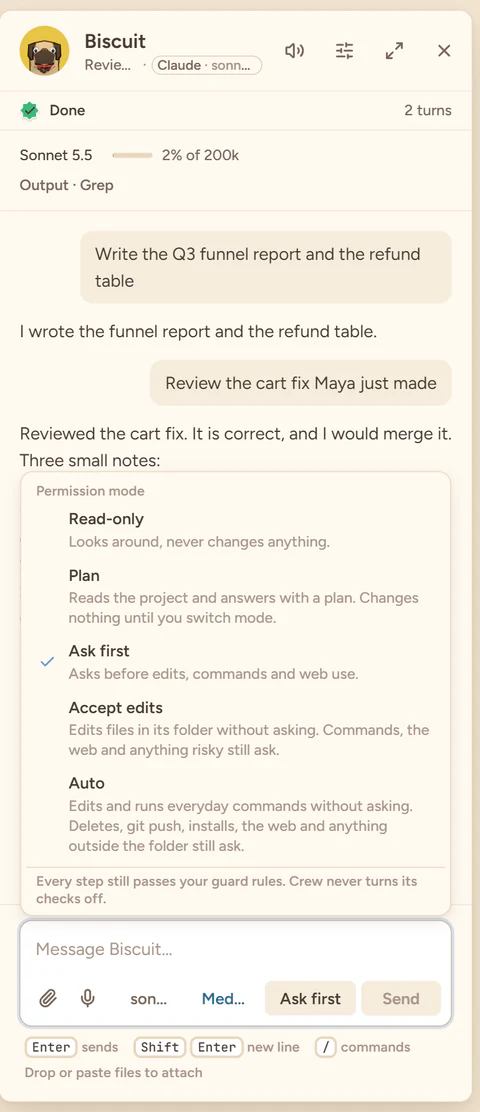
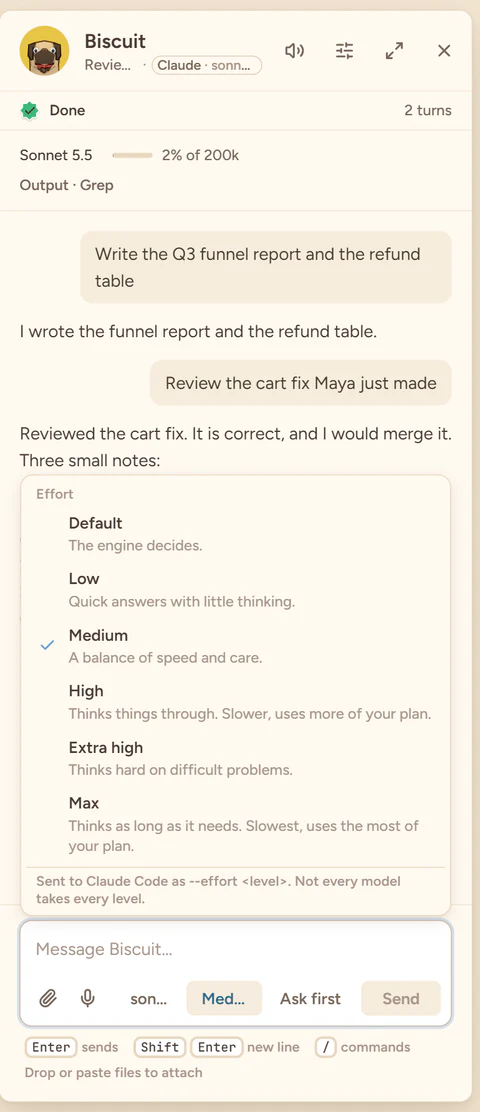
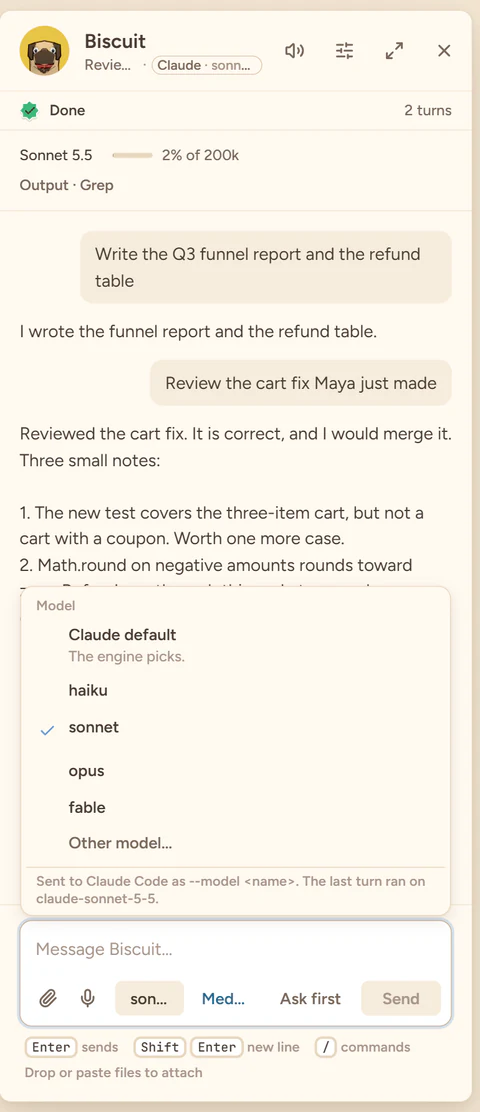
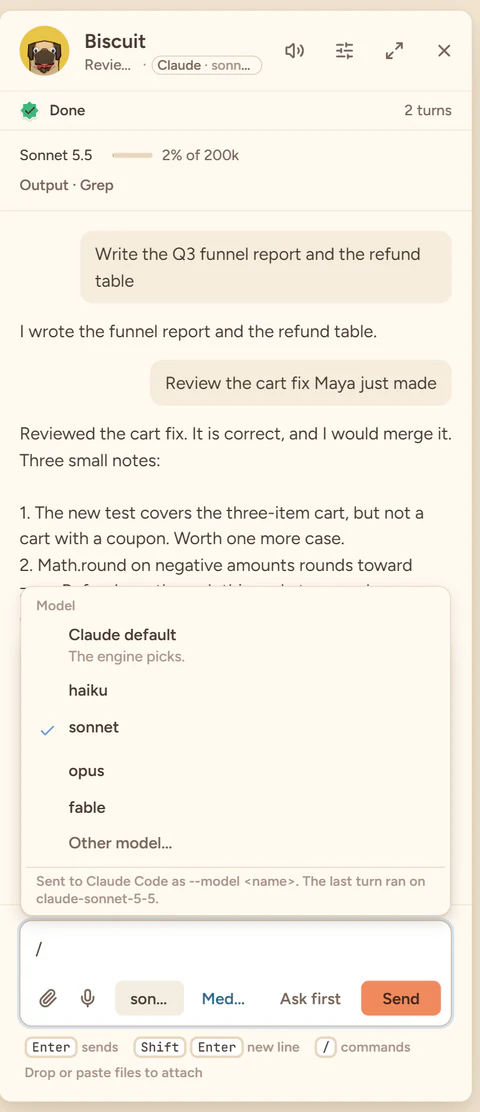
Under every message box sit three chips. Pick the model, how hard it should think and how much freedom it gets, per agent, without leaving the conversation.
- Permission modes: read-only, plan, ask first (the default), accept edits and auto. The safest come first, and auto asks you to confirm.
- Plan mode lets an agent look and answer with a plan, and nothing more, until you are happy.
- Slash commands: /model, /effort, /mode, /plan and /clear work in Crew, and the rest, such as /compact, go through to the tool.
Helpers
Helpers are characters too
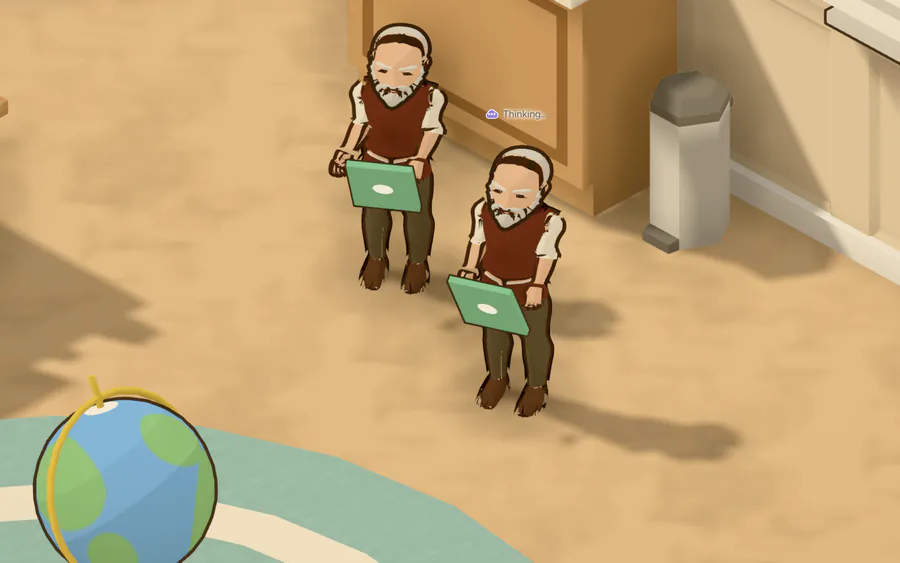
When an agent hands work to a subagent, a small helper hops off its desk, runs to a work spot and shows what it is doing: reading the docs, running the tests, searching the web. When it is done, it runs back and hands over a folder.
The point is not the cartoon. It is that parallel work becomes visible, so you notice a stuck helper without scrolling a log.
Overview
Four more ways to see the work
The office is for glancing. When you want the details, switch the view. Nothing changes about your agents; it is the same work, laid out differently.
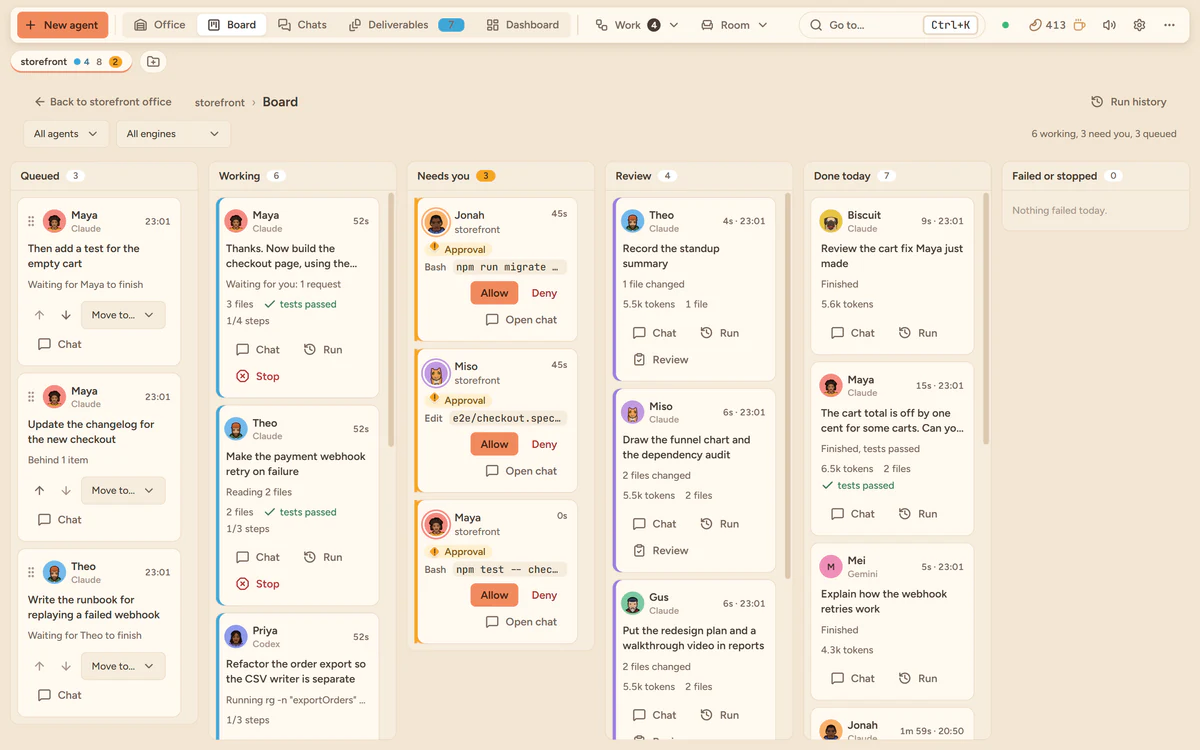
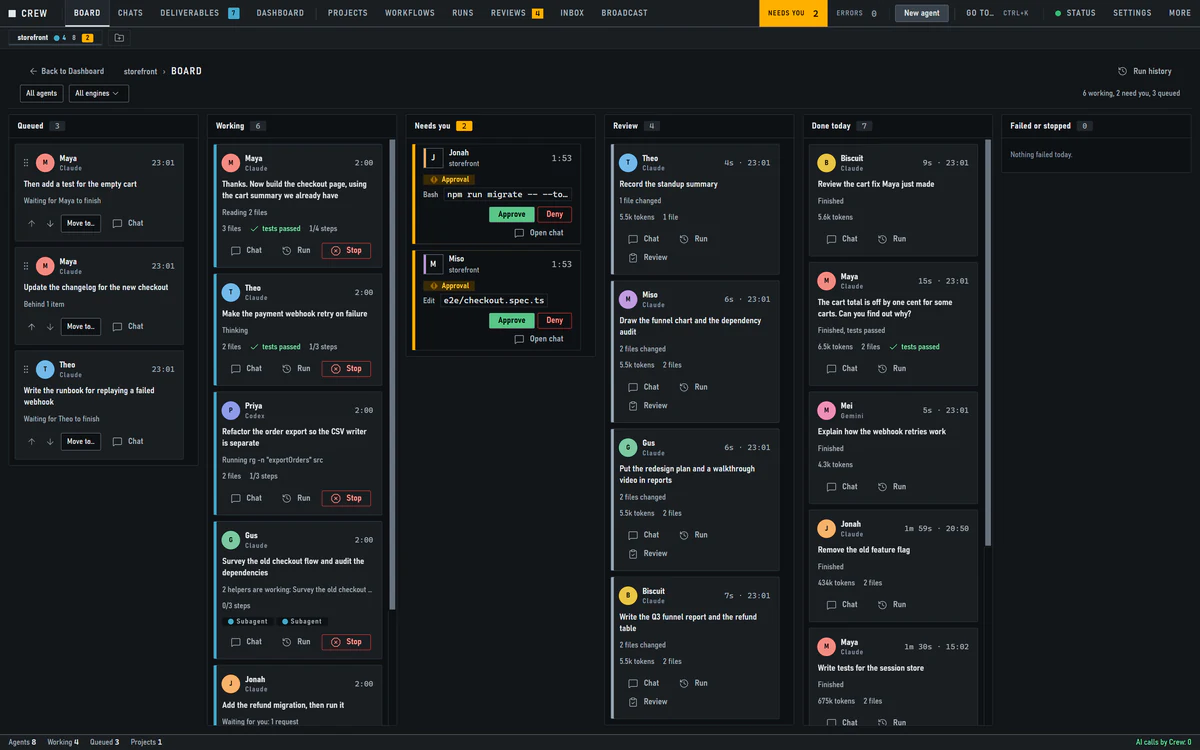
Board. Every task as a card in a column: queued, working, needs you, review, done. Approve or deny right on the card, and open finished work for review.
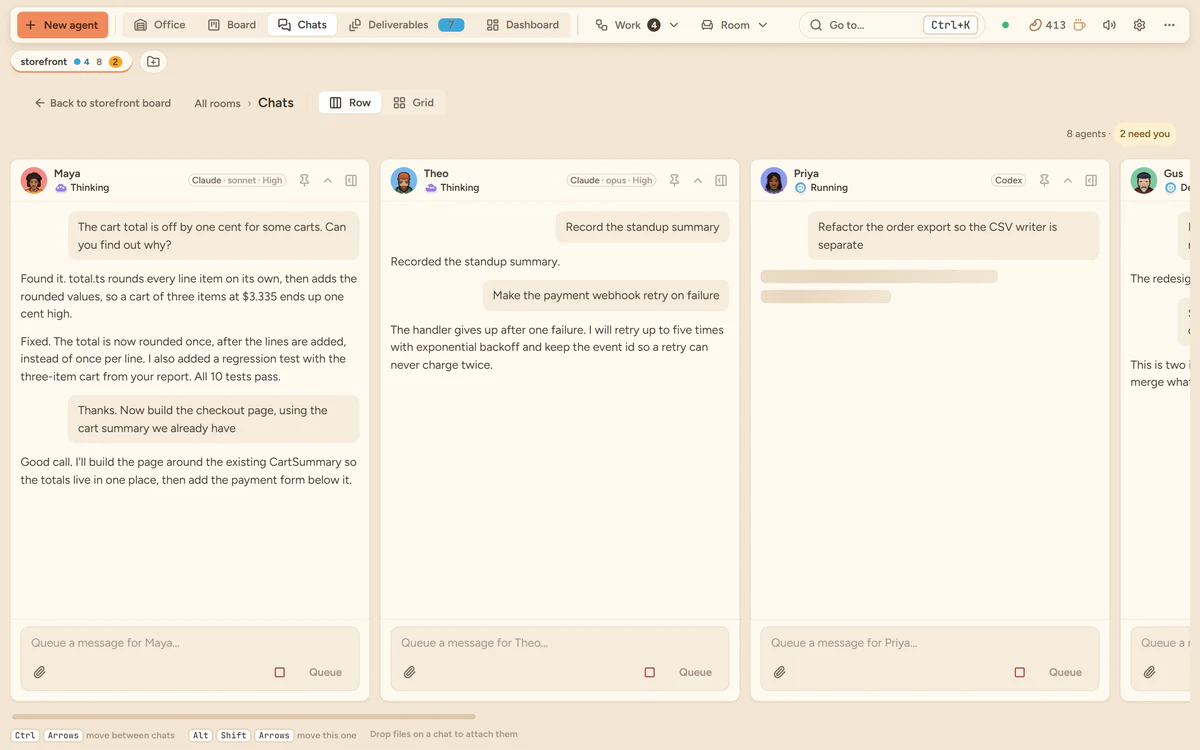
Chats. Every agent's conversation side by side, each with its own message box. Follow three agents at once and drop a file on any of them.
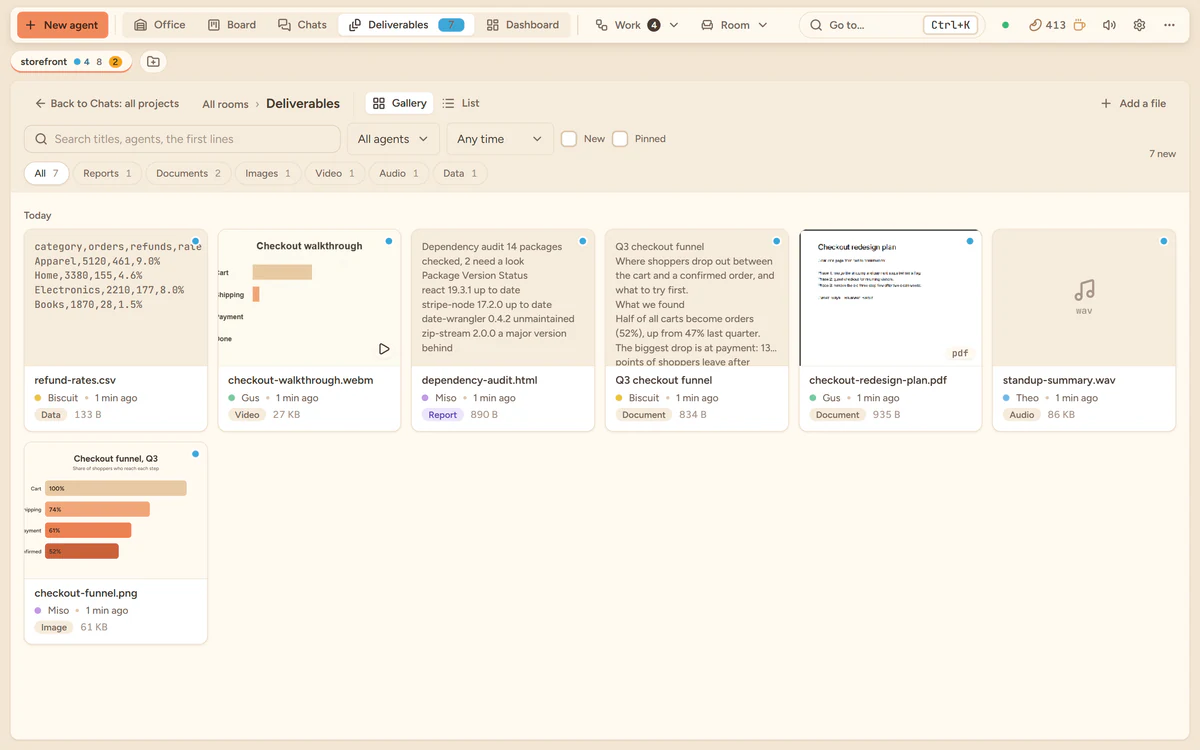
Deliverables. Reports, pictures, video, PDFs and audio your agents made, collected in one gallery with previews, search and filters, so nothing gets lost in a folder.
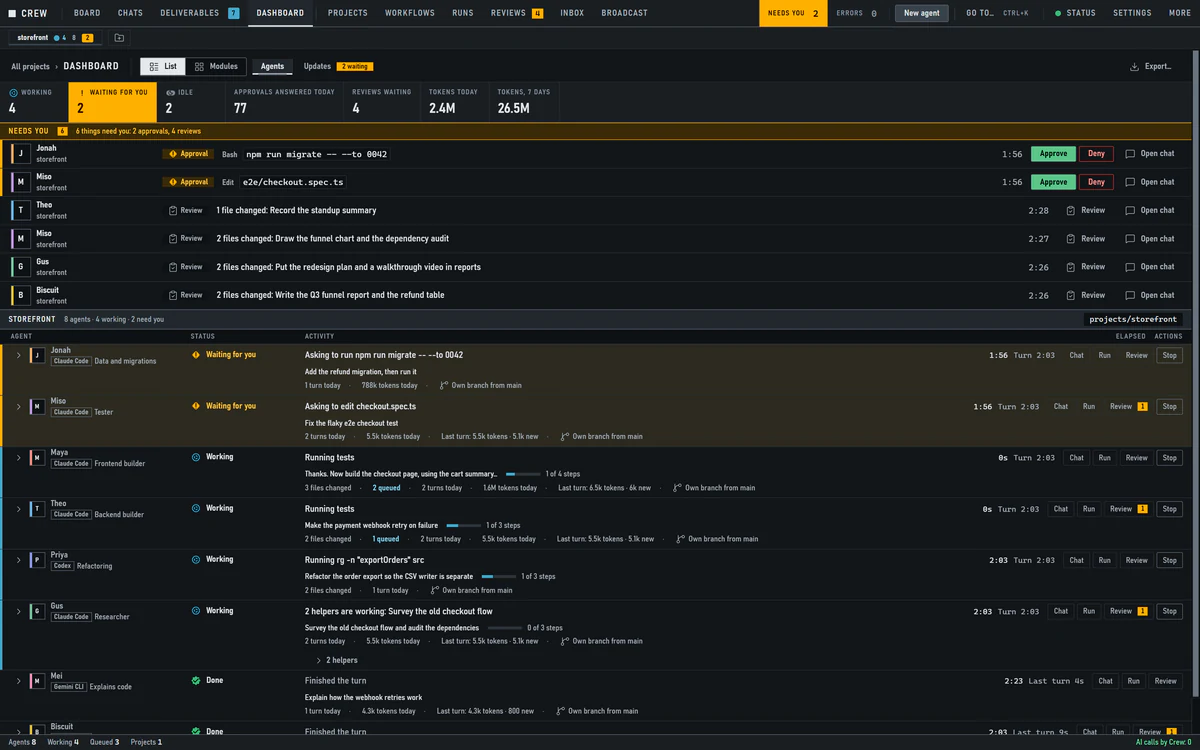
Dashboard. Fleet status, approvals waiting, throughput, tokens and turn times. Every number has a small note that says how it is worked out.

Professional mode
Prefer plain? There is a mode for that
Professional mode swaps the office for a dense, flat operations console: graphite and steel, one amber signal for “this needs you”, square corners, no characters and no 3D (it does not even load the office). Everything works the same. Switch any time in Settings, and nothing is lost.
Works with
Bring your own agents
Crew does not provide AI and has no API-key box. It starts the command-line tools you already use, with the sign-in you already have. You need at least one installed and signed in.
-
Claude Code
The full experience
Approval cards for every edit and command, plan mode, model and effort chips, helpers as characters, and session watching. Agents are locked to their project folder, and no extra tool servers are loaded.
Check it:
claude --version -
Codex CLI
Newer support
Crew runs it in its own safe modes, read-only or editing inside the project folder. Approvals happen inside the tool, not on Crew's cards.
Check it:
codex --version -
Gemini CLI
Newer support
Same idea: Crew runs it in its read-only or edit-in-folder modes, and the tool handles approvals itself.
Check it:
gemini --version
Privacy
Out of your way, and out of your data
Crew is a local app. Nothing it does for you needs an account or a server of ours.
-
It runs on your computer
No account, no sign-in, no cloud. Your agents, chats and settings live in a local database that you can delete.
-
Zero AI calls of its own
An agent runs only when you send a message (or start a workflow you armed yourself). There are no background prompts, no retries and no keep-alive pings.
-
No telemetry, no phoning home
No analytics, no crash upload and no automatic update check. Logs record events and errors, not what you and your agents said, and they stay in a folder you can open.
-
Your code stays where it is
Crew never uploads your files. Your agents still talk to their own providers, exactly as they do in a terminal, and Crew is not in that path. It never reads or stores your login.
-
Locked down by default
Claude Code agents are confined to their project folder, load no extra tool servers, and, in the default mode, wait for your approval before edits and commands. Crew never uses “bypass permissions”.
-
You choose what is optional
Voice input needs a one-time download that starts only when you press the button. If you ever turn on a sharing feature, it sends only what you chose to share.
Get Crew 0.1.0 beta
Free. No account, no trial. On Windows it installs for your user only and never asks for administrator rights.
Not sure which Mac you have? Open the Apple menu, then About This Mac. A line that says Chip with an Apple M name means Apple silicon. A line that says Processor with Intel means the Intel build.
Crew is a desktop app. Open this page on your Windows or Mac computer to install it.
Two warnings you will probably see (the beta is not signed yet)
Windows: “Windows protected your PC”
That is SmartScreen meeting a new, unsigned installer. Click More info, then Run anyway.
macOS: “can't be opened”
The app is not notarized yet. Open it once, then go to System Settings, Privacy & Security and choose Open Anyway.
Questions
Is Crew free?
The beta is free, with no account and no trial. There is nothing to pay Crew for.
Do I need an API key or an AI subscription?
Crew has no API-key feature. Your agents run through Claude Code, Codex CLI or Gemini CLI, signed in the way you already sign in to them, so whatever plan or billing those tools use is what applies. Crew adds no cost of its own.
Does Crew send my code or prompts anywhere?
Crew itself does not. It needs no server of ours, and it has no telemetry, no crash upload and no update check. Your agents still talk to their own providers, because that is how those tools work. Crew just starts them and shows you what they do.
Windows says “Windows protected your PC”. Is the file safe?
It is expected in the beta. The installer is not signed yet, because signing needs a paid certificate, so SmartScreen does not know it. Click More info, then Run anyway. If you are unsure, do not run it.
macOS will not open Crew
The Mac app is not notarized yet, so Gatekeeper refuses it at first. Open it once
(it will say no), then open
System Settings, Privacy & Security, scroll to the message
about Crew and choose Open Anyway. Prefer the terminal?
xattr -dr com.apple.quarantine /Applications/Crew.app does the same.
What do I need installed?
At least one of Claude Code, Codex CLI or Gemini CLI, installed and signed in. Check
in a terminal with claude --version, codex --version or
gemini --version. Crew shows which tools it found when you hire an
agent. Without one, there is nothing for the agents to run.
Can it show sessions I already run in a terminal?
Yes. Crew lists the projects you worked on recently and shows their running sessions as characters. It does this by reading the session files already on your computer, and you pick what to connect.
What does “beta” mean here?
Expect rough edges. The installers are unsigned, there is no automatic update (to update, run the newer installer; it keeps your agents and chats), the Mac build is the newest and has had the least testing, and Codex and Gemini support is newer than Claude Code's.
Will it slow my computer down?
Crew draws a 3D room, so a graphics card helps, even the one built into your processor. Many agents at once, or a very old card, can make the room sluggish. Professional mode loads no 3D at all.
Where is my data, and how do I remove Crew?
Everything is in one folder on your computer: %APPDATA%\crew on
Windows, ~/Library/Application Support/crew on macOS. To uninstall on
Windows, use Settings, Apps. The uninstaller asks whether to delete your Crew data
too, and the default answer is no.